
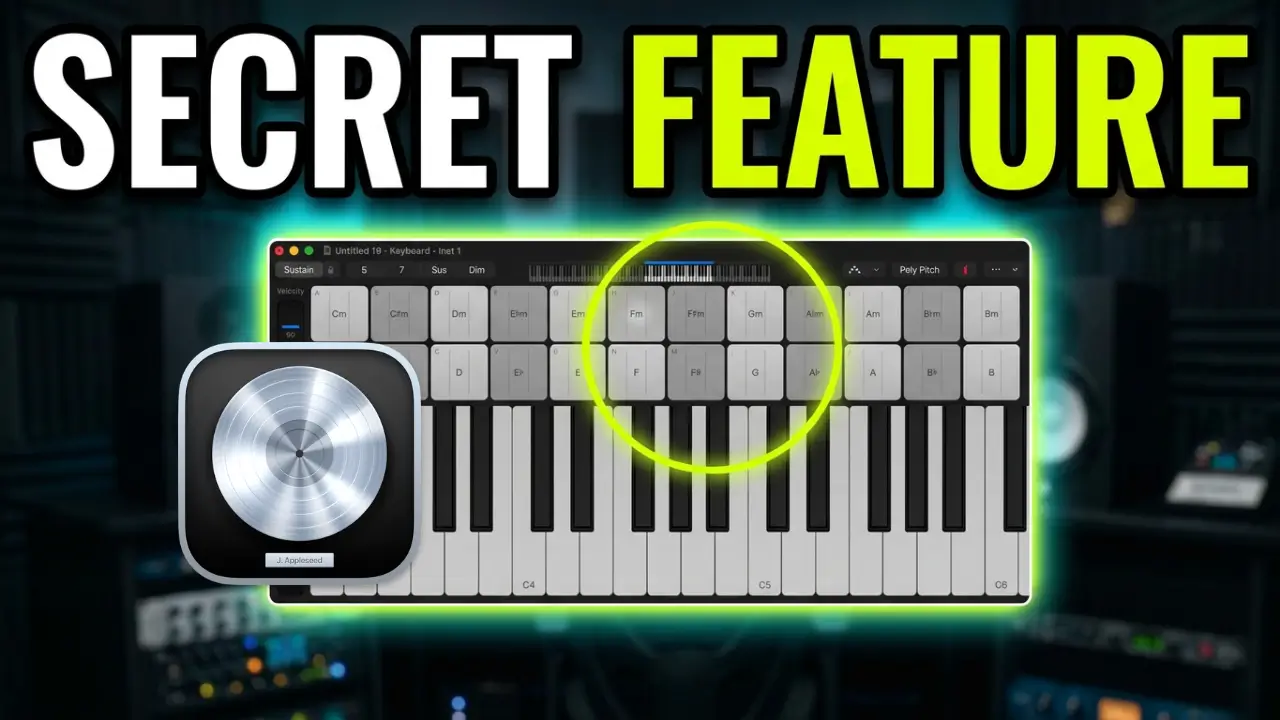
Logic Pro 13 includes an updated Play Surface that lets you play instruments, chords, and drums using your computer keyboard and mouse. There are quite a few features packed into this interface, including pitch bend, modulation, velocity controls, chord inversions, Poly Pitch, and an arpeggiator.
In this video, I’m taking a closer look at the Play Surface and exploring how it works, what you can do with it, and where Apple could make some improvements.
Related:
- Logic Pro 13: Add Your Own Sample Libraries to the Loop Browser (Not Just Splice)
- Logic Pro 13: Subscription Is Here, But Where’s ARA Support?
- Logic Pro 13’s New Browser: A Closer Look at Searching Sounds, Splice Samples, and Effects
Playing Instruments With Your Computer Keyboard
One of the main features of the Play Surface is the ability to play notes using your Mac’s computer keyboard. You can trigger individual notes, play chords, and use your mouse to select different chord inversions.
You also have a sustain option, which can be useful with instruments that have longer evolving sounds, such as Alchemy patches.
The number keys provide additional performance controls. You can use keys 1 and 2 for pitch bend and several other keys for modulation. Velocity can also be adjusted directly with your mouse.
This gives you quite a few performance options without having to connect a separate MIDI keyboard.
Poly Pitch Is Particularly Interesting
One of the more interesting features is Poly Pitch. This allows compatible instruments to respond to different pitches across the Play Surface.
I demonstrate this using an Ample Guitar instrument. With Poly Pitch enabled, you can play intervals, fifths, and power chords in ways that make the Play Surface particularly useful for guitar-style parts.
You can also experiment with sustain to create different playing styles.
Not every instrument supports this behavior, but when it works, it’s a pretty interesting feature.
Chord Layouts and the Circle of Fifths
Logic Pro 13 gives you different ways to work with chords. You can switch between playing individual notes and playing chords, and there are different layout options, including chromatic and Circle of Fifths.
You can also use the Current Track Auto setting to automatically switch the Play Surface layout when changing instruments.
One thing I would like Apple to add is the ability to select a musical key and have Logic display all the chords that belong to that key.
Splice Create has a chord layout that handles this differently, and I think that approach could make Logic’s Play Surface more useful for beginners and anyone interested in quickly creating chord progressions.
Recording MIDI With the Arpeggiator
The Play Surface also includes an arpeggiator, and you can record your performance directly into Logic Pro.
When you record, Logic captures the MIDI information generated by your performance, including the arpeggiator. The arpeggiator MIDI effect is automatically added to the track when you enable the feature.
Once recorded, you can open the MIDI region and edit the notes and performance however you like.
This is useful because you aren’t limited to simply playing sounds in real time. You can turn your performances into editable MIDI arrangements.
Playing Drums Without a MIDI Keyboard
The dedicated drum layout provides another way to perform using your computer keyboard.
Different keyboard keys trigger individual drum sounds, and you can adjust velocity and switch between available drum banks.
You can also trigger patterns such as four-on-the-floor kick drums, 16th notes, and triplets. This makes it possible to experiment with drum patterns and even create trap-style hi-hat rhythms.
The feature works with Logic’s own drum instruments as well as compatible third-party instruments.
Customizing the Play Surface
You can resize the Play Surface and change the number of rows displayed. There are options for three, four, or six rows, depending on how much space you want to use.
Additional settings include bass note controls, root note options, automatic sizing, and a custom row setting.
You can also access the Play Surface quickly using Command-K, which opens and closes the interface.
Creating Chord Tracks in Logic Pro 13
Another interesting feature is the ability to create a chord track using the Play Surface.
You can select chords such as D minor, A minor, C, and F, and build a chord progression directly in Logic.
The resulting chord regions can be edited afterward to adjust their length and position.
This is a useful addition, although I still think the chord selection interface could be improved by allowing users to choose a key and see all the available chords within it.
Final Thoughts
Overall, Logic Pro 13’s Play Surface offers quite a few useful features for playing instruments, experimenting with chords, creating drum patterns, and recording MIDI performances without a traditional MIDI keyboard.
I particularly like the Poly Pitch feature and the ability to record arpeggiated performances as MIDI.
However, I would still like to see Apple improve the chord layout system, especially for people who want to create songs using chords within a specific musical key.
Have you tried the new Play Surface in Logic Pro 13? Let me know what you think.
Leave a Reply