
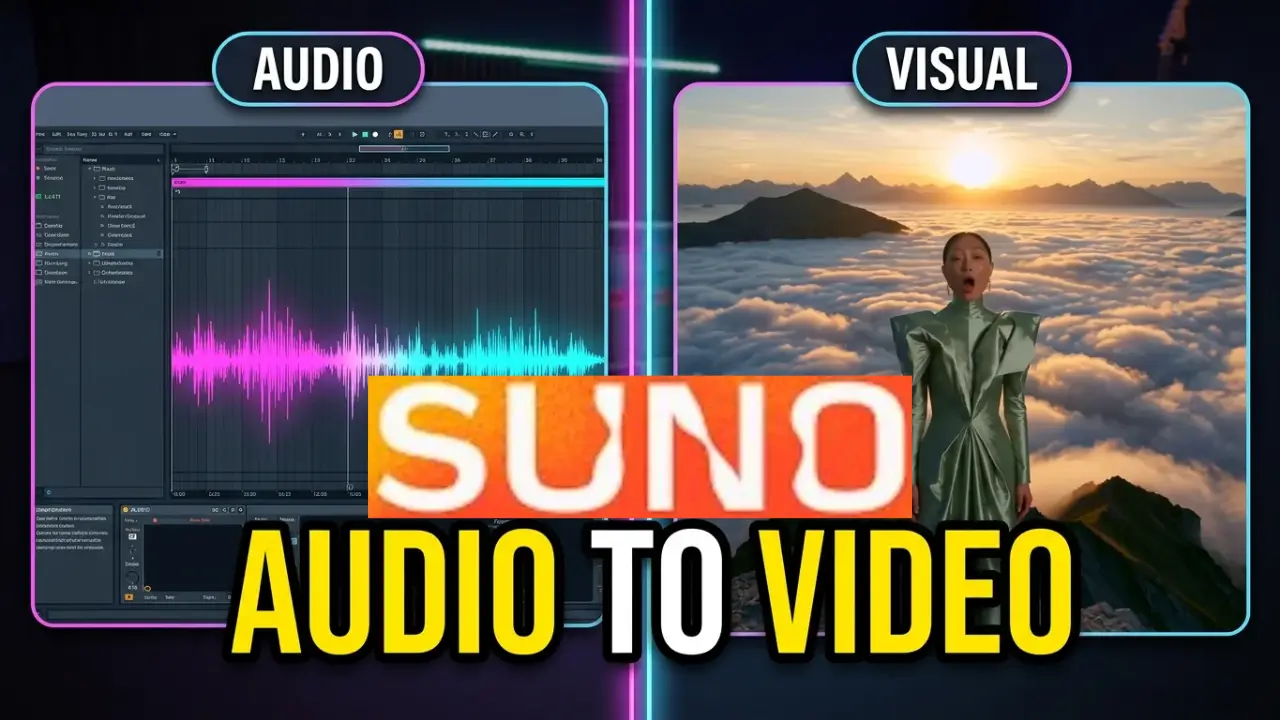
Suno Visuals brings AI-generated video creation into the Suno music workflow, allowing musicians to turn their songs into short music videos with synchronized visuals and lip syncing. I decided to test Suno Visuals using one of my own original songs, “Beautiful Day, Beautiful Life,” to see how the new AI video generation feature works.
The lyrics and melodies are mine. Suno handled the performance and helped bring the song to life visually. This is my first look at Suno Visuals, including two different video versions, available formats, lyric displays, and the current editing options.
Watch my first look at Suno Visuals below.
What Is Suno Visuals?
Suno Visuals is a feature designed to help users create AI-generated music videos from their songs. Rather than relying entirely on traditional video production, musicians can use AI to generate visuals that accompany their music.
For this first experiment, I used “Beautiful Day, Beautiful Life,” one of my original songs. I wanted to see how Suno would interpret the music visually and whether it could produce something that looked reasonably convincing.
One of the first things I noticed was that Suno Visuals offers different video formats, including vertical and widescreen. This gives you some flexibility depending on whether you’re creating content for YouTube, Shorts, or other social platforms.
Testing Suno Visuals With Two Different Videos
I generated two versions of the video using the same song. It’s interesting to see how Suno Visuals interprets the same musical material in different ways.
I also experimented with the lip-sync feature. Suno generated visuals that appeared synchronized with the song, creating the impression that the performance was connected to the music.
The results provide an idea of what’s possible when combining original music with AI-generated visuals. While these are short clips rather than complete music videos, they offer an interesting starting point for experimenting with music presentation.
Adding Lyrics With Suno Visuals
Another feature I explored was the ability to add lyrics to the generated video.
Suno provides an option to display lyrics in a karaoke-style format. Since I had already provided the lyrics when creating the original song in Suno, the system appeared to have the correct words available.
This could be useful for musicians who want to create lyric videos or add another visual element to their music videos.
Suno Visuals Editing and Video Extensions
Suno also provides several options for modifying generated videos.
Some of the available features include:
- Describing edits to change the video.
- Extending an existing video.
- Adding another clip.
- Adding lyrics to the video.
These options suggest that Suno Visuals is moving toward a more flexible video creation workflow rather than simply generating one short visual and leaving it at that.
One limitation I noticed during my first look was the apparent 15-second generation limit. I would have preferred the ability to generate a video for the entire song rather than working with short clips.
Hopefully, longer video generation becomes available as Suno Visuals develops.
First Impressions of Suno Visuals
This was just my first look at Suno Visuals, so I haven’t explored everything yet.
I found the process interesting, particularly the ability to combine an original song with AI-generated visuals and lip syncing. The lyric display and editing options also provide additional possibilities.
For independent songwriters and musicians, Suno Visuals could offer another way to present original music without having to organize a traditional music video production.
The important distinction in my experiment is that I wrote the song. The lyrics and melodies are my own work. Suno provided the AI-assisted performance and visual presentation.
I’ll be interested to see how Suno Visuals evolves and whether full-length music video generation becomes available.
Want to hear more of “Beautiful Day, Beautiful Life”? There are additional performances and versions of the song available on my YouTube channel.

Leave a Reply