
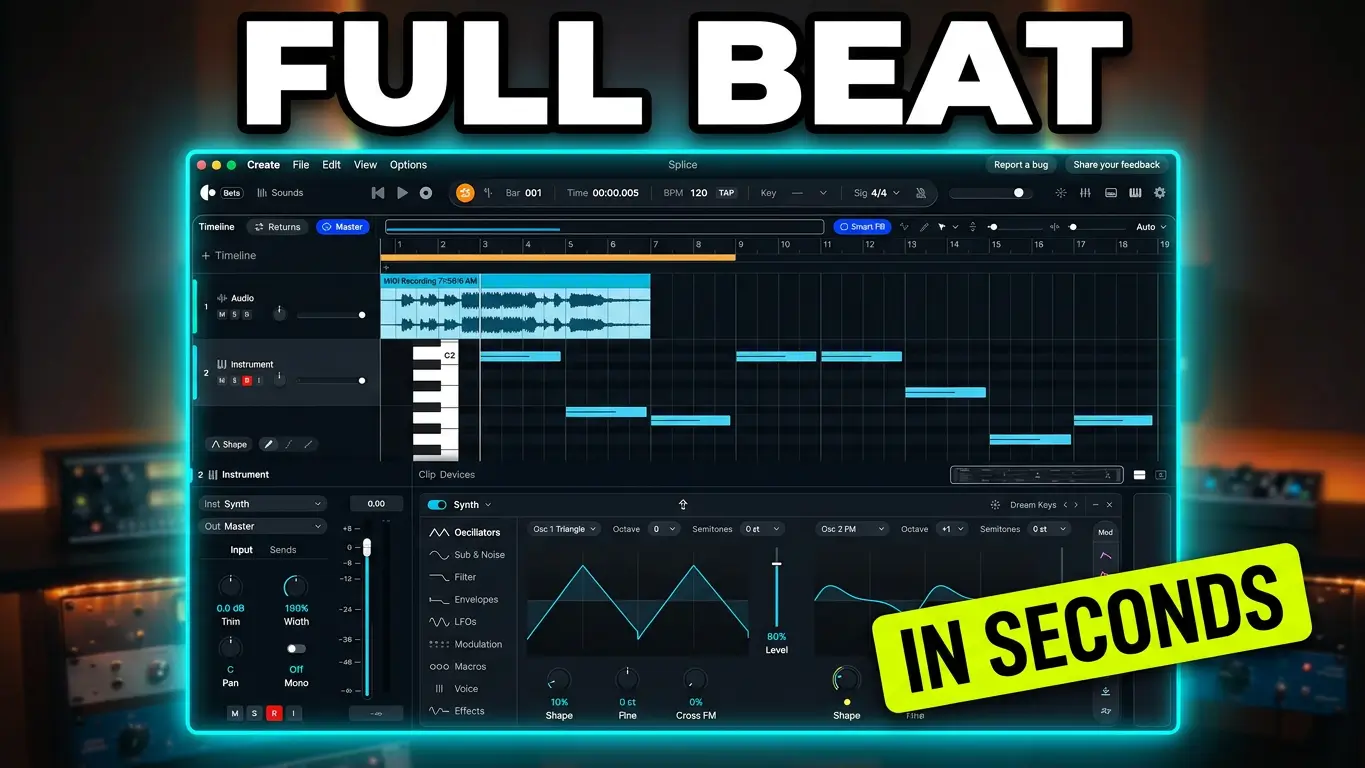
Can you actually make music inside Splice Create? In this video, I’m putting Splice’s new AI-powered music production application to the test by building a couple of basic beat ideas using its chord tools, MIDI instruments, sample library, and AI assistant.
Splice Create combines a standalone DAW with the Splice sound library and AI-assisted production features. Rather than just browsing for samples, you can use the application to build arrangements, find sounds, create MIDI parts, and get help with different aspects of music production.
Creating Chord Progressions With Splice Create
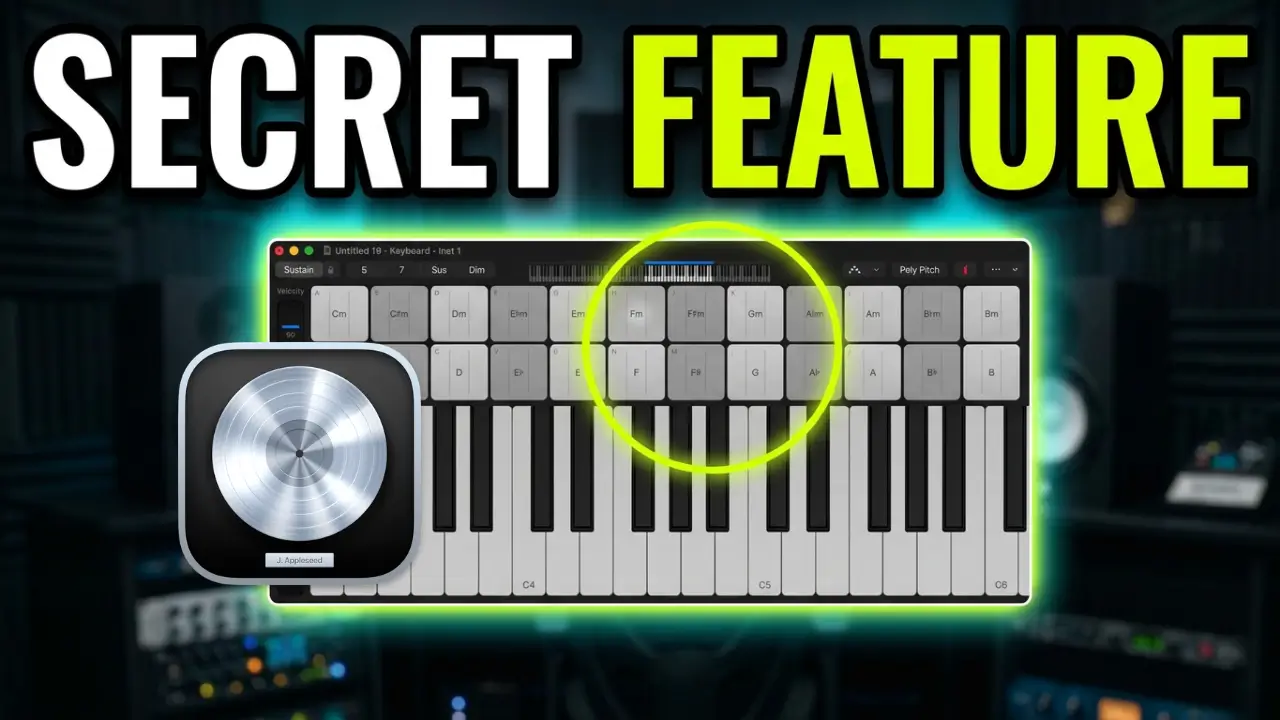
I start by experimenting with the chord progression tools. Splice Create has a musical typing keyboard that lets you trigger chords using your computer keyboard.
The project is set to the key of C at 100 BPM, and I experiment with major chords, sevenths, and different chord combinations. I record a progression, review the MIDI notes, and use quantization to tighten up the timing.
Once I have a basic chord progression, I start experimenting with adding a melody on top.
Using AI to Find Bass and Drum Parts
Next, I start building out the arrangement.
I ask Splice Create to find a matching bassline and experiment with using a MIDI bass part rather than an audio sample. I also test the voice-command functionality by asking the assistant to find a matching drum loop.
This is where things get interesting. Instead of manually searching through the entire sample library, I can describe what I’m looking for and let the assistant help find something appropriate.
I also experiment with adding a backing vocal track, specifically looking for backing vocals rather than lead vocals.
Editing Samples and Exploring the Mixer
After adding some sounds, I take a look at the sample editing controls.
I experiment with transposing audio clips, changing playback settings, and looking at options such as looping, reverse playback, and automatic warping.
I also open the mixer to see what plugin options are available. Splice Create includes its own plugins, along with support for third-party Audio Units plugins.
This gives you some flexibility when shaping sounds and working with effects inside the application.
Trying a Different Beat
After experimenting with the first arrangement, I decide to start a new project and try something different.
This time, I experiment with a lo-fi beat instead of the original upbeat idea. It’s a quick test, but it gives me another opportunity to see how quickly I can put together a musical idea using Splice Create.
Can You Actually Make Music in Splice Create?
This is still an early look at the application, and I’m figuring out many of the features as I go.
However, the basic workflow is interesting. You can create chord progressions, record MIDI, find bass and drum parts, add vocal samples, and experiment with different arrangements without constantly leaving the application.
The AI assistant is particularly interesting because it can help locate sounds and answer questions while you’re working.
I’m going to spend more time exploring Splice Create, especially its AI features and how useful they are in an actual music production workflow.
If you’re interested in checking it out, visit the official Splice Create website.
Leave a Reply