
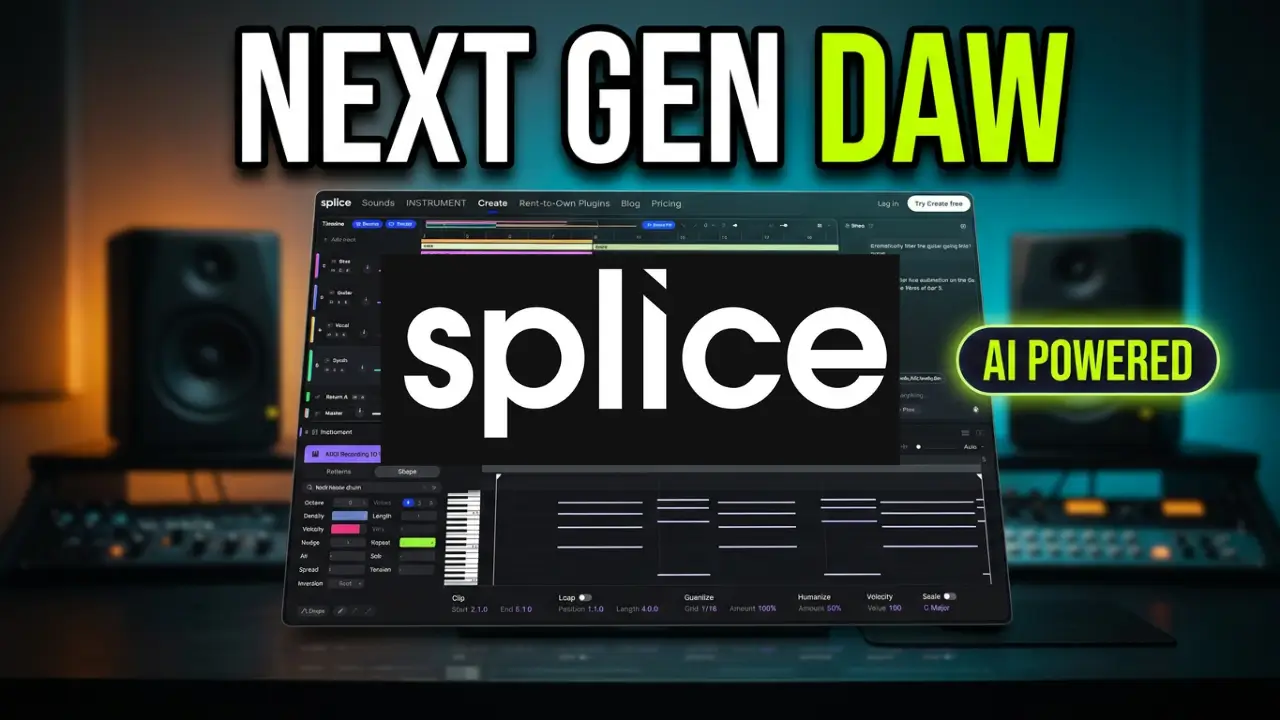
Splice has been known for years as a popular destination for music producers looking for samples, loops, and sounds. Now, the company is taking things in a different direction with Splice Create, a standalone music production application that combines a DAW, virtual instruments, effects, the Splice sound library, and AI-assisted production tools.
In this video, I’m taking my first look at Splice Create, exploring its interface, testing the AI assistant, and seeing what it’s like to actually make music with it.
What Is Splice Create?
Splice Create is designed to bring music production and AI assistance together in one environment.
One of its main features is Assist, an AI assistant that lets you interact with your project using text or voice commands. You can ask it to help organize tracks, group drums, insert effects, set up sidechain compression between your kick and bass, or find particular sounds.
It can also help with creative ideas, including chord progressions, production suggestions, and finding sounds that fit a particular direction.
The important distinction is that Assist isn’t simply generating an entire finished song. It’s designed to help you work with samples, instruments, MIDI patterns, and other elements that you can edit yourself.
Point: An Assistant for Learning Music Production
Another interesting feature is Point.
Point is designed to provide step-by-step guidance while you’re working inside the application. If you’re unfamiliar with a particular feature or don’t know how to accomplish something, you can ask for help directly inside your session.
This could be particularly useful for people who are new to music production or learning a new DAW.
Instead of constantly switching between your music software and YouTube tutorials, you can get assistance while working on your project.
Exploring the Splice Sound Library
Splice’s extensive sound library is integrated directly into the application.
You can search through millions of samples and loops, audition sounds, and bring them directly into your project.
The application also includes Splice instruments and effects, but you’re not limited to using only Splice products. You can also work with your own plugins and sample libraries.
During my first look, I experimented with finding a drum loop to go along with a project and bringing samples into the audio arrangement.
Testing MIDI, Chords, and Instruments
I also spent some time exploring the MIDI and instrument features.
I experimented with chord progressions, playing notes using both a MIDI keyboard controller and the computer keyboard, and trying to record performances.
There are also familiar music production features, including a metronome, count-in, mixer, MIDI editing, and quantization.
I was still learning my way around the application, but I was able to get some basic ideas going relatively quickly.
Working With Other DAWs
Splice Create is currently a standalone Mac application rather than a plugin.
You can export your full mix or individual stems as WAV files and continue working in other music production applications, including Logic Pro, Ableton Live, Bitwig, and Pro Tools.
That means you don’t necessarily have to replace your existing DAW to experiment with Splice Create.
Windows and web versions are planned, while the current desktop application requires macOS 12 or later.
Splice Create Pricing
Splice Create offers a free starting option with unlimited projects and no time limit.
There is also a Create Pro subscription advertised at an introductory price of $9.99 per month. This adds full WAV and stem export capabilities, access to the Splice catalog without using credits, and additional monthly usage for intelligent features.
Check the official website for current pricing and subscription details.
My First Impressions
This is just my first look at Splice Create, so I haven’t had a chance to explore everything yet.
I can already see how the AI assistant could be useful, particularly for people learning the application or trying to figure out how to accomplish something without digging through menus.
I’m also interested in seeing how the MIDI tools, instruments, sample library, and AI features work together during a more complete production session.
I’ll be spending more time with Splice Create and taking a closer look at what it can actually do.
Learn more: Splice Create
Leave a Reply