
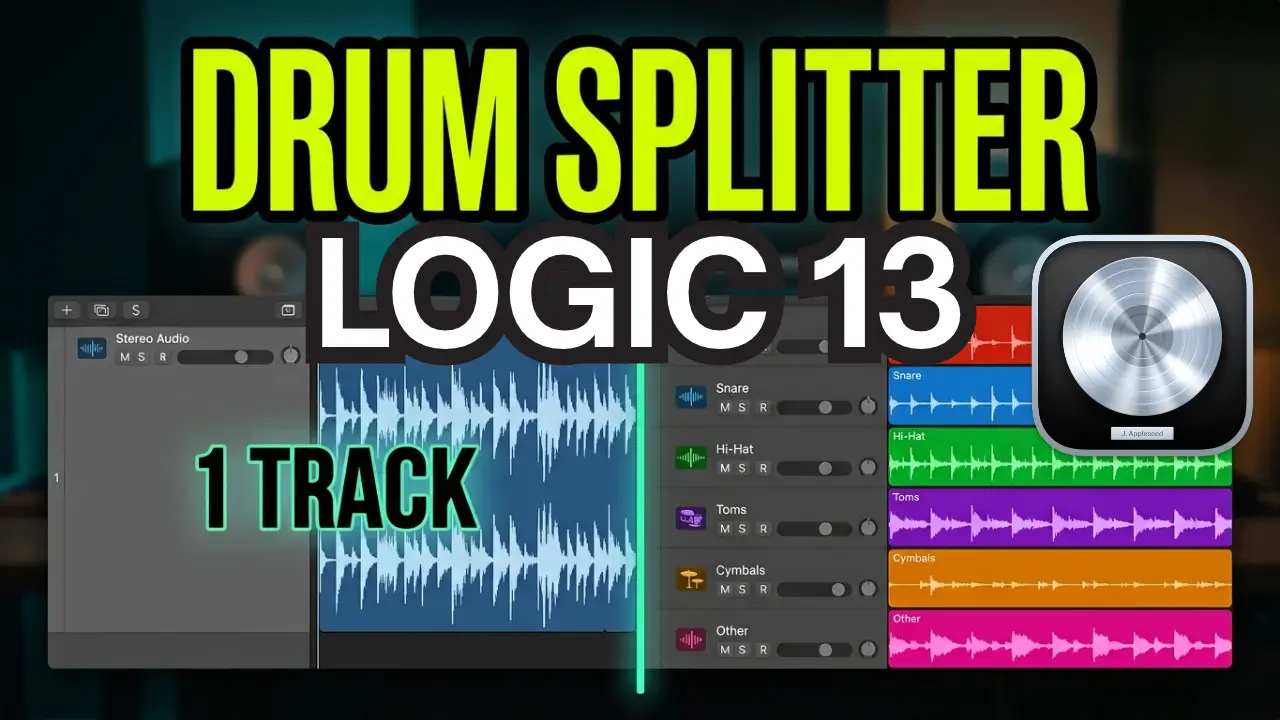
Apple’s Logic Pro 13 introduces a new Drum Splitter feature that can separate an existing drum recording into individual elements, giving you more control over how you edit, process, and replace sounds in a drum arrangement.
In this first look, I’m testing the new Drum Splitter with a simple drum loop and then moving on to a complete song arrangement to see how well it handles a more complex recording.
Watch the video below for a first look at Logic Pro 13 Drum Splitter.
Testing Logic Pro 13 Drum Splitter
I started with a simple drum loop to see how Logic Pro 13 would analyze the recording and separate the individual drum sounds.
One thing I noticed during the initial analysis was that Logic was also picking up some of my Splice sounds. After the analysis was complete, I compared the original drum loop with the separated version to hear what had changed.
The results provide individual drum elements that can be accessed and auditioned separately.
Separating and Replacing Kick and Snare Sounds
One of the interesting parts of Drum Splitter is the ability to double or replace individual drum tracks.
For example, I selected the kick drum and explored some of the available replacement options, including Sampler and acoustic kick sounds.
This opens up some useful possibilities. Instead of accepting the original kick or snare sound in a recording, you can experiment with different samples and sounds while keeping the original performance.
You can also work with the separated drum elements independently, which provides additional flexibility when processing a drum recording.
Testing Drum Splitter With a Full Song
After testing the basic drum loop, I moved on to a full song arrangement.
This is where I wanted to see how the feature would work with a more complete recording rather than a short, isolated loop.
Logic Pro organized the separated drum elements inside their own track stack, which sits within the main song arrangement’s track stack.
This makes it possible to access the individual drum elements while keeping the overall project organized.
Auditioning Individual Drum Tracks
I spent some time soloing the different drum elements to hear how well Logic separated them.
I looked at the hi-hats, cymbals, shakers, and other percussion elements. There was some cymbal bleed in the hi-hat separation, so it’s worth listening carefully to each individual track rather than assuming every element will be perfectly isolated.
The results will depend on the original recording and how much overlap there is between the different drum sounds.
Can You Replace Hi-Hats Too?
You can also experiment with replacing hi-hats, although this can be a little trickier than replacing kicks and snares.
One challenge is dealing with the differences between open and closed hi-hat sounds. These are distinct articulations, and replacing them correctly requires a little more attention.
I’ll probably explore that part of the feature in a separate video.
First Impressions of Logic Pro 13 Drum Splitter
Overall, Drum Splitter is an interesting addition to Logic Pro 13.
Being able to take an existing drum recording and separate it into individual elements gives you more options for sound replacement, processing, and mixing.
My initial tests with both a simple drum loop and a full song arrangement show some interesting possibilities. There are still details worth exploring, particularly with hi-hat separation and cymbal bleed, but it’s a useful new tool to have inside Logic Pro.
I’ll be looking at more Logic Pro features and workflows in upcoming videos.
Have you tried Logic Pro 13 Drum Splitter yet?
Leave a Reply