
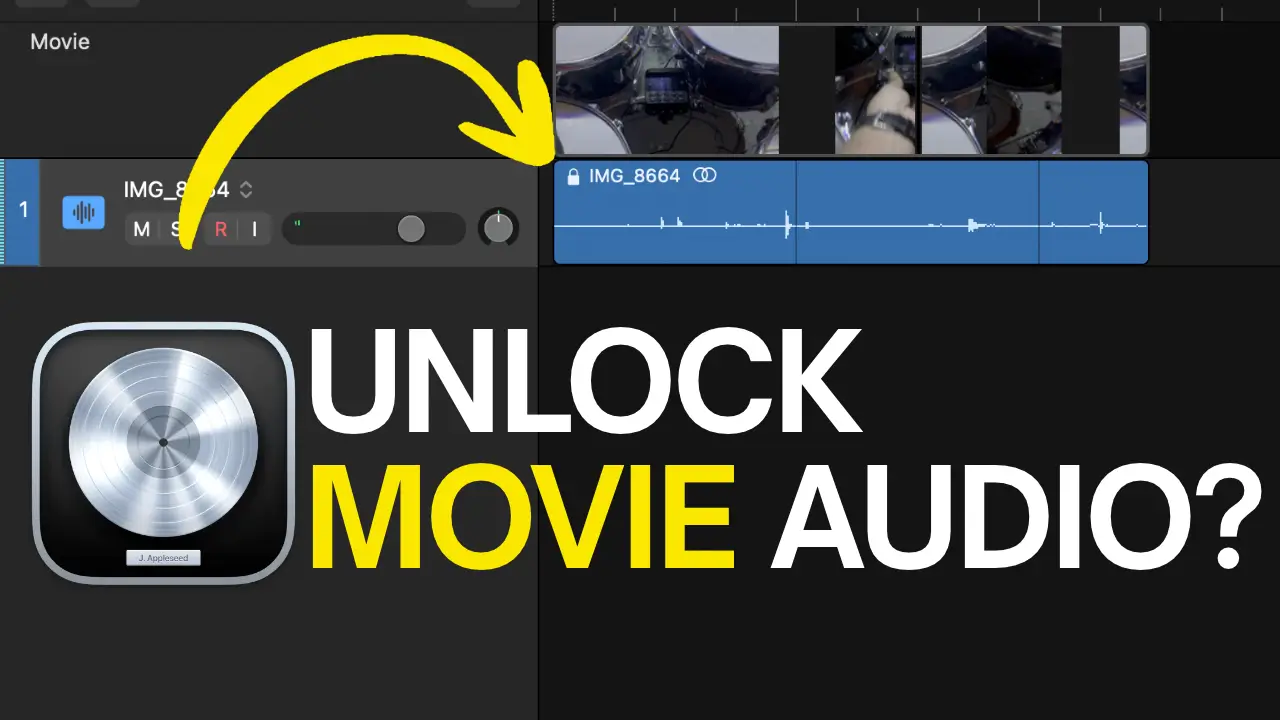
When you import a video file into Logic Pro, the audio extracted from that video is automatically locked to its original time position. This can make it difficult to move or edit the audio independently of the video.
Fortunately, there’s a simple way to unlock it.
In this quick Logic Pro tutorial, I’ll show you how to disable the Lock Time Position setting so you can move, reposition, and edit the imported audio independently of the movie.
How to Unlock Imported Audio in Logic Pro
When you import a movie into Logic Pro, the audio region that accompanies the video is locked to its original position on the timeline.
To unlock it, follow these steps:
- Open the Inspector in Logic Pro.
- Select the imported audio region.
- Navigate to the Region section of the Inspector.
- Locate the Lock Time Position setting.
- Turn off Lock Time Position.
That’s it. The audio region is now unlocked, and you can move it independently along the Logic Pro timeline.
Move the Audio Without Moving the Video
Once you’ve disabled Lock Time Position, you can drag the audio region to a different position on the timeline.
One thing to keep in mind is that the movie itself does not automatically move along with the audio. The video remains in its original position, so if you move the audio, you’ll need to reposition the movie manually to get everything lined up again.
This gives you more flexibility when working with imported video files, especially when you need to make adjustments to the audio without affecting the video position.
Trim the Beginning or End of the Movie
You can also trim the imported movie directly in Logic Pro.
For example, you can cut off unwanted footage at the beginning or end of the video. This is useful when you only need a specific portion of the movie for your project.
After unlocking the audio, you can make these adjustments independently and position everything where you need it.
Final Thoughts
If you’ve ever wondered why audio extracted from an imported video file won’t move in Logic Pro, the Lock Time Position setting is the reason.
Disabling this setting takes just a few seconds and gives you the ability to edit the audio and video independently.
It’s a small Logic Pro tip, but one worth knowing if you regularly work with video inside your DAW.
Check out Movie settings in Logic Pro for Mac

Leave a Reply